
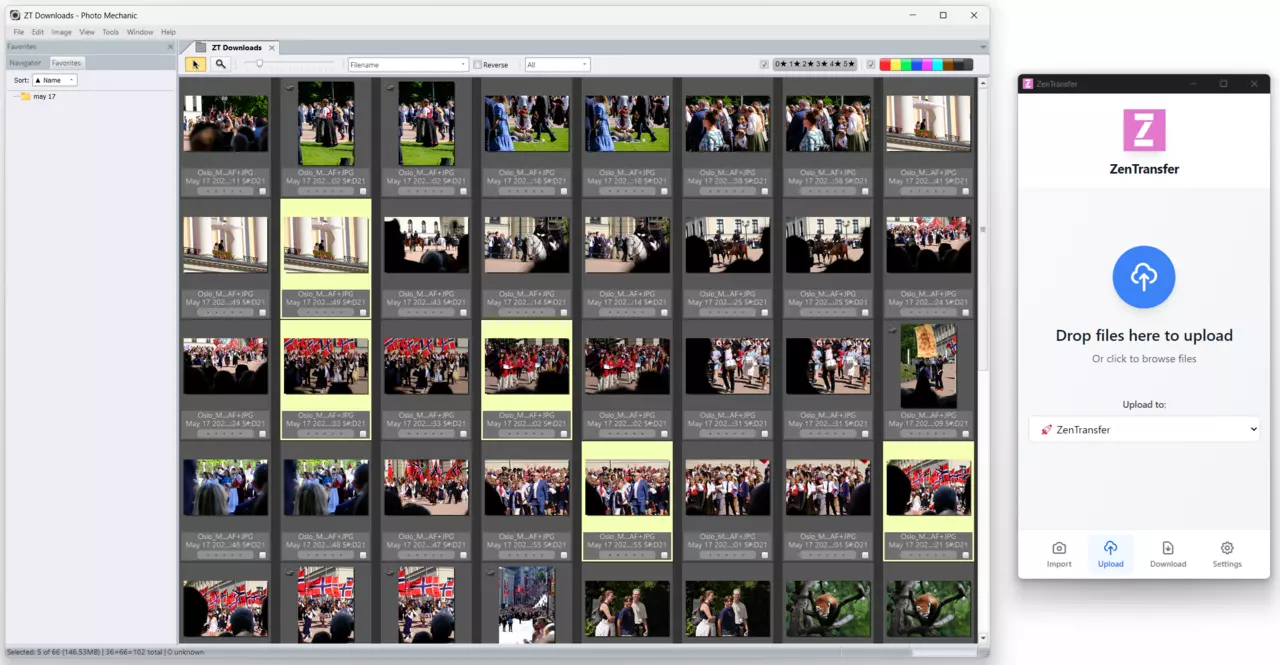
Photo Mechanic is the tool of choice for photographers who need to get through a large card fast. Pop an SD or CF card into a reader, and Photo Mechanic will ingest and render previews faster than anything else on the market. Within seconds you are browsing full-resolution images, tagging selects with star ratings or color labels, and applying IPTC metadata through the Stationery Pad. For anyone working on deadline - sports, news, events - that speed is not optional, it is the entire point.
Now you need to get them to an editor, a wire service, an agency FTP server, a cloud archive, and maybe a client inbox. Photo Mechanic has built-in FTP, which is genuinely useful, but it sends to one destination at a time. If you need to reach three FTP servers, two email recipients, and a Google Drive folder, you are looking at multiple uploads, each one consuming time and bandwidth you may not have on location.
That is the gap ZenTransfer fills.
How Photo Mechanic and ZenTransfer Work Together
There are two ways to connect Photo Mechanic to ZenTransfer, and both take advantage of Photo Mechanic's speed at the front end and ZenTransfer's ability to fan out to every destination at the back end.
Option 1: Use Photo Mechanic's Built-in FTP
Photo Mechanic already supports FTP uploads. Point it at ZenTransfer's FTP server - same hostname and credentials you would use for a camera - and your selects go straight from Photo Mechanic into ZenTransfer. From there, ZenTransfer takes over: it applies your active metadata templates and forwards the files to every active destination you have configured.
This approach keeps everything inside Photo Mechanic. You ingest, cull, tag, and upload without leaving the application. The only difference from a traditional FTP workflow is that instead of sending to one news desk, you are sending to ZenTransfer, and ZenTransfer delivers to all of them.
Option 2: Drag Selects into the ZenTransfer Desktop App
If you prefer, you can drag your selects from Photo Mechanic directly onto the ZenTransfer Desktop App. The desktop app uploads once and ZenTransfer.io handles the rest - with unlimited bandwidth on the worlds fastest networks at its disposal.
One Upload, Every Destination
The core value of combining Photo Mechanic with ZenTransfer is that you only upload once. That single upload can:
- Add metadata - copyright, credit line, caption, keywords, contact information - written into the IPTC/EXIF fields of every file before delivery.
- Relay to any number of FTP servers - wire services, agency desks, newspaper photo editors, your own archive server.
- Send email notifications - editors who prefer a download link instead of an FTP inbox receive an email the moment the file is available.
- Back up to cloud drives - Google Drive, Dropbox, or other connected storage services receive a copy automatically.
All of this happens from a single upload out of Photo Mechanic. You save time because you are not repeating the upload for each destination. You save mobile data bandwidth because the file leaves your machine once, not five times. And you ensure simultaneous delivery - every outlet gets the image at the same time, so no desk is waiting while another has already published.
Managing Destinations on the Fly
ZenTransfer's dashboard lets you turn individual destinations on and off at any time. Covering an event where only one client needs the files? Switch the others off. Need to add a last-minute wire service? Turn it on from your phone. The change takes effect immediately. Photo Mechanic does not need to be reconfigured - it keeps sending to the same ZenTransfer FTP endpoint, and ZenTransfer routes accordingly.
This is a meaningful difference from managing multiple FTP profiles inside Photo Mechanic itself. Instead of editing server credentials and remembering which profile goes where, you manage everything from one place and Photo Mechanic just does what it does best: ingest, cull, and send.
Skip the Laptop Entirely
Photographers whose cameras support FTP - most professional Canon, Nikon, and Sony bodies do - can go even faster by sending straight from the camera to ZenTransfer over a Wi-Fi or cellular hotspot. This skips the card reader and the laptop altogether for those shots you just have to get delivered while the event is unfolding. The camera uploads as you shoot, ZenTransfer applies metadata and delivers to every configured destination in real time. For breaking news and fast-turnaround sports coverage, that can mean the difference between being first and being second.
What do you think?
Your thoughts help us improve our product and serve you better. Please take a moment to share your thoughts and ideas on how we can improve.