
News photography is a race. The shot that sits on a memory card or in a camera buffer is worth nothing until it reaches an editor's screen. The traditional workflow — camera to laptop, laptop to FTP client, FTP client to one desk at a time — introduces delay at every step and multiplies the risk of something going wrong. ZenTransfer removes those steps and lets you reach every destination at once, with your copyright and event information already embedded in every file.
Two Ways to Get Files into ZenTransfer
ZenTransfer accepts files in two ways, and most photographers end up using both depending on the situation.
Direct from the Camera via FTP
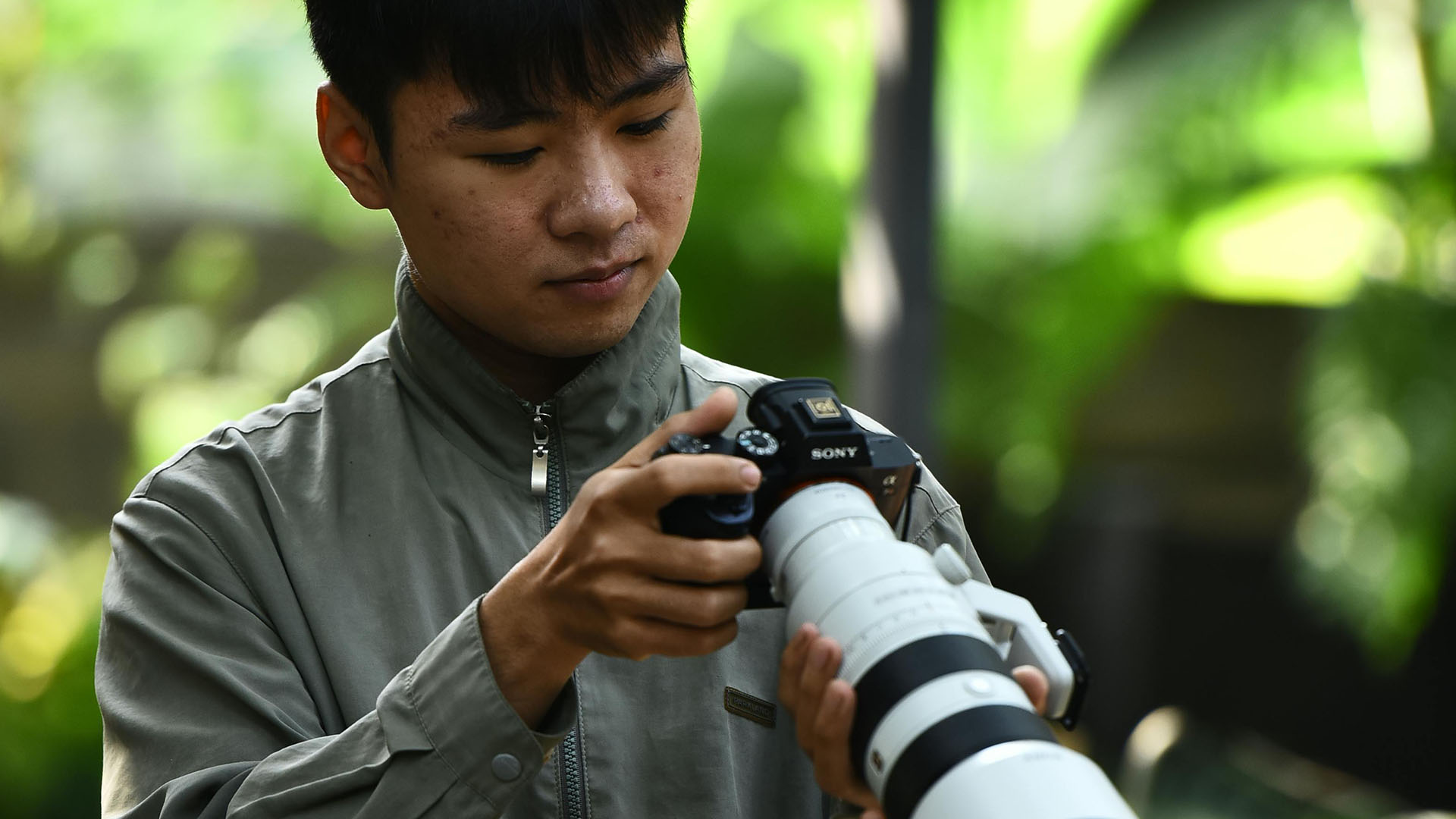
Professional cameras from Canon, Nikon, and Sony support FTP transfers over Wi-Fi. You configure the camera once with ZenTransfer's FTP credentials — hostname, username, and password — and from that point on the camera sends every shot to ZenTransfer automatically as you shoot. Connect to your phone's hotspot, a dedicated 5G device, or any available Wi-Fi network, and files begin flowing without you touching a laptop.
This is the fastest option for field work. The camera does the uploading while you keep shooting.
From a Laptop Using the ZenTransfer Desktop App
When you are working from your MacBook or Windows laptop — in a press room, a media zone, or back at your hotel — the ZenTransfer Desktop App gives you a straightforward drag-and-drop interface to push files through ZenTransfer and out to all your configured destinations.
The desktop app is free and open source. Download it from zentransfer.io, sign in with your ZenTransfer account, and your destinations and metadata templates are already waiting. Drag a folder of selects into the app, and ZenTransfer handles the rest: metadata is applied, and every file is delivered to every destination you have configured.
Delivering to Multiple Newsdesks via FTP
Most wire services and newsdesks still receive photos over FTP. ZenTransfer lets you add as many FTP destinations as you need. Each destination has its own hostname, credentials, and target folder. When a file arrives in ZenTransfer — whether from your camera or the desktop app — it is forwarded to every active FTP destination in parallel.
This means a single upload from your camera can simultaneously reach:
- Your agency's ingest server
- A national wire service
- A regional newspaper's photo desk
- Your own archive on a NAS or cloud storage
You can enable and disable individual destinations from your phone at any time through the ZenTransfer dashboard. Working on a story that only goes to one client? Switch the others off. Covering an event where three desks all want real-time delivery? Turn them all on. The change takes effect immediately — no need to reconfigure the camera or the desktop app.
Delivering to Individual Editors via Email
Not every editor works with an FTP inbox. Many prefer to receive a link they can click. ZenTransfer supports email delivery as a destination type: when a file arrives, ZenTransfer sends a notification email to the editor with a traceable download link. The editor clicks the link, downloads the full-resolution file, and the download is logged against your account.
You can configure multiple email recipients, and like FTP destinations, email destinations can be toggled on and off independently. Set up your regular contacts once, then manage them from your phone as the job requires.
This is particularly useful for:
- Freelance assignments where you need to deliver to a specific commissioning editor rather than a shared desk inbox
- Breaking news where you want to push directly to a named editor who is monitoring their inbox
- International distribution where a desk does not operate an FTP server but expects email with attachments or links
Metadata: Copyright and Event Information Baked Into Every File
One of the most common problems in wire photography is files arriving without proper attribution. Metadata gets stripped, filenames get changed, and by the time an image has passed through two or three systems, the credit line is gone. ZenTransfer addresses this at the source.
ZenTransfer applies metadata to every file before it is forwarded to any destination. You configure metadata templates in your dashboard, and ZenTransfer writes the specified fields into each image's IPTC and EXIF metadata before sending. The fields you can set include:
- Creator / Photographer name
- Copyright notice (e.g. "© 2026 Jane Doe. All rights reserved.")
- Credit line (e.g. your agency name or wire service)
- Contact information (email, phone, web address)
- Usage rights / license terms
- Event / caption information
- Location data
- Keywords
You can create multiple templates — one for your wire service syndication, one for editorial rights-managed work, one for events where you have a specific client credit to include. Switch between them from your phone before you start shooting. From that point, every image that flows through ZenTransfer carries the correct rights information embedded in the file, regardless of what the receiving system does to the filename or how it stores the file.
This protects you. When an image circulates and someone needs to find out who made it or whether they have permission to use it, the answer is inside the file itself.
A Typical Game Day Workflow
To make this concrete, here is how a photojournalist covering a major sporting event might use ZenTransfer:
- The night before, set the metadata template to the correct event name, location, and copyright year. Turn on the relevant FTP destinations for the wire services covering the event.
- At the venue, connect the camera to a 5G hotspot. The camera begins transferring images to ZenTransfer as they are shot.
- ZenTransfer applies the metadata template to each incoming file and immediately forwards it to all active destinations — wire service A, wire service B, the team's own archive.
- At half-time, the photographer switches to the laptop, reviews selects, and drags the best frames into the desktop app for a second pass with a tighter edit. These go out with the same metadata and to the same destinations.
- After the final whistle, they log into the dashboard, turn off the wire service destinations, and leave the archive destination active for any cleanup uploads later.
Getting Started
ZenTransfer is free to try. Sign up at zentransfer.io, connect your first FTP destination or email recipient, and run a test from your camera or the desktop app. Most photographers have their first files flowing within twenty minutes of creating an account.
Once your destinations and metadata templates are configured, the system is automatic. You focus on the photography. ZenTransfer handles the distribution.
What do you think?
Your thoughts help us improve our product and serve you better. Please take a moment to share your thoughts and ideas on how we can improve.