
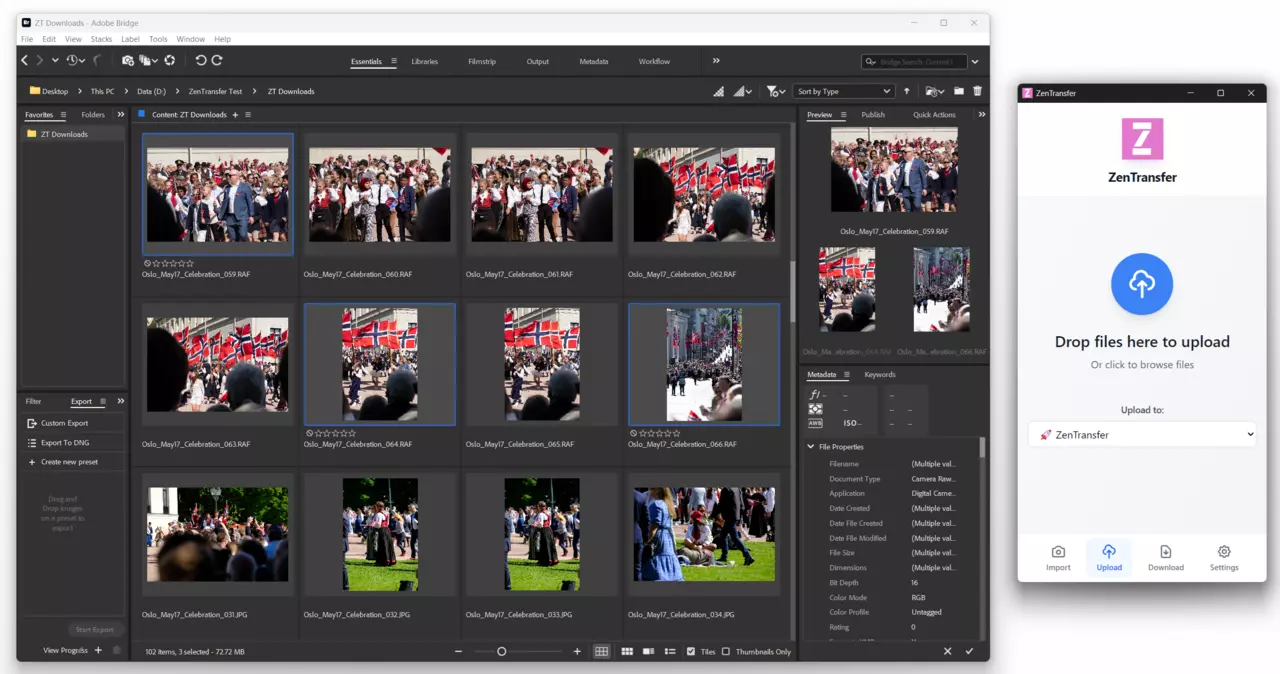
Adobe Bridge is a powerful visual file manager that many photographers rely on for the early stages of their workflow. Plug in an SD or CF card and Bridge will ingest the contents, generate previews, and let you browse, rate, and label images in a clean visual interface. Batch rename, keyword tagging, metadata templates, and tight integration with Photoshop and Camera Raw make it a strong choice for photographers who want precise control over their files before anything leaves the machine.
Where Bridge stops is delivery. It is a file manager and organizer, not a distribution tool. There is no built-in FTP client, no way to push files to a wire service, no mechanism for emailing selects to an editor, and no native cloud upload beyond Creative Cloud. Once you have your selects ready, getting them out to the people and places that need them is a separate, manual process - and when you need to reach multiple destinations, that process multiplies.
ZenTransfer picks up exactly where Bridge leaves off.
How Adobe Bridge and ZenTransfer Work Together
The workflow is straightforward. Use Bridge for everything it is good - ingest from the card, browse the take, rate and label your selects, apply metadata and keywords, batch rename. When your selects are ready, drag them into the ZenTransfer Desktop App. ZenTransfer uploads them once and handles everything from there.
That single upload can:
- Add or override metadata - copyright notice, credit line, caption, contact details, keywords - embedded in the IPTC/EXIF fields of every file before delivery.
- Relay to any number of FTP servers - agency ingest servers, wire service desks, newspaper photo editors, your own NAS or archive.
- Send email notifications - editors who work from their inbox get a download link the moment the file is available.
- Back up to cloud drives - Google Drive, Dropbox, or other connected storage receives a copy automatically.
Bridge handles the curation. ZenTransfer handles the distribution. You do not need to open an FTP client, compose emails with attachments, or log into three different cloud services.
One Upload Instead of Five
The practical benefit is that you upload once and deliver everywhere. If you need to reach two FTP servers, an editor's email, and a Google Drive backup folder, that is one upload from your laptop, not four. On location - where you might be working over a mobile hotspot with limited bandwidth - the difference is significant. You use a fraction of the data and a fraction of the time, and every destination receives the files simultaneously. No desk is waiting while another has already published.
ZenTransfer applies your configured metadata template to every file before forwarding. This means the copyright, credit line, and caption information are baked into the file itself, regardless of what the receiving system does to the filename or folder structure. Your attribution travels with the image.
Managing Destinations from Your Phone
ZenTransfer's dashboard lets you toggle individual destinations on and off at any time. Working a job where only one client needs the files? Switch the others off. Covering a multi-day event where different desks need coverage on different days? Turn them on and off as needed from your phone. The change takes effect immediately and does not require any reconfiguration in Bridge or the desktop app.
You set up your destinations once - FTP servers, email recipients, cloud drives - and then manage them as the job demands. Bridge stays focused on what it does best: letting you see, sort, and prepare your images.
Skip the Laptop Entirely
Photographers whose cameras support FTP - most professional Canon, Nikon, and Sony bodies do - can take the workflow a step further by sending straight from the camera to ZenTransfer over a Wi-Fi or cellular hotspot. This bypasses the card reader and the laptop completely. The camera uploads as you shoot, ZenTransfer applies metadata, and every configured destination receives the file in real time. For fast-turnaround work where seconds count, that direct camera-to-delivery pipeline is as fast as it gets.
What do you think?
Your thoughts help us improve our product and serve you better. Please take a moment to share your thoughts and ideas on how we can improve.